
What is Windows Server RDP?
Remote Desktop Protocol (RDP) provides graphical remote access to Windows systems. A remote client connects to a Windows server, authenticates, and receives a remote desktop session.
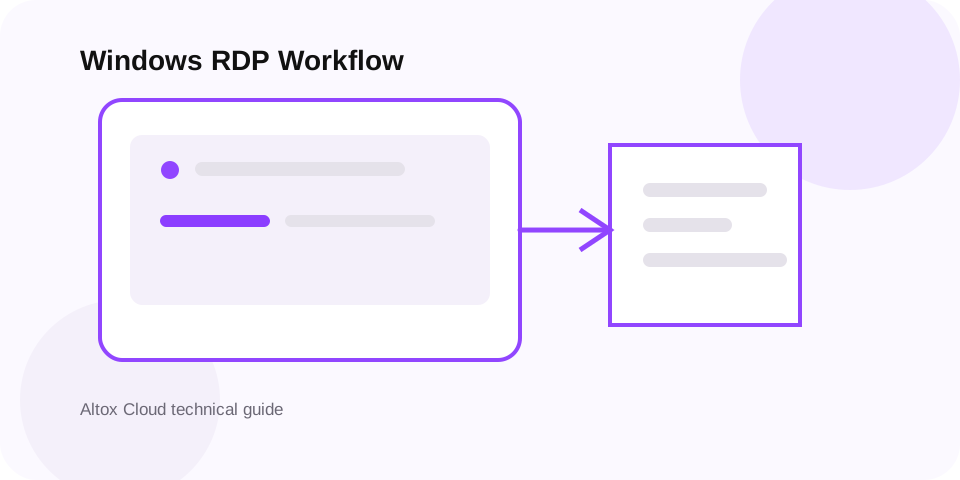
How RDP works
- The client resolves the server address.
- A network connection is established to the RDP service.
- The server authenticates and authorizes the account.
- A remote session is created.
- Display data and user input are exchanged during the session.
Common use cases
- Windows Server administration.
- Windows-only application access.
- Development and testing.
- Remote graphical management.
- Persistent Windows desktop workflows.
RDP security checklist
- Use strong unique credentials.
- Enable Network Level Authentication where appropriate.
- Patch Windows regularly.
- Restrict remote access using firewalls, VPNs or other access controls where appropriate.
- Monitor successful and failed authentication.
- Use separate administrative accounts.
Changing the default port by itself is not a complete security control.
RDP troubleshooting
Cannot connect
Check DNS, reachability, firewall rules, the RDP service and remote-login permissions.
Authentication fails
Verify account status, credentials and applicable remote-access policies.
Slow sessions
Check network latency, packet loss, CPU, memory, disk activity and concurrent sessions.
Unexpected disconnects
Check network stability, session policies and Windows event logs.
Choosing an RDP environment
- Identify Windows and application requirements.
- Estimate CPU and RAM.
- Check storage requirements.
- Consider user location and latency.
- Confirm concurrent-session requirements.
- Review licensing and acceptable-use requirements.
- Plan backups and account recovery.
RDP hardening workflow
Remote desktop should be treated as an administrative access path, not simply as a convenience feature. Build security in layers rather than relying on one setting.
- Keep Windows and exposed services patched.
- Use unique accounts and strong authentication practices.
- Enable Network Level Authentication where it fits the environment.
- Limit who can reach RDP using firewall rules, private networking or a VPN where appropriate.
- Review authentication and Windows event logs for unexpected activity.
- Maintain a recovery path so access problems do not become data-loss incidents.
Diagnosing RDP performance
High latency
Distance and network routing can make keyboard, mouse and screen updates feel delayed even when the server has spare CPU.
CPU pressure
Heavy applications or too many concurrent tasks can make the desktop respond slowly.
Memory pressure
Insufficient RAM can force applications and the operating system to compete for memory.
Disk pressure
Updates, antivirus scans, databases and application I/O can create storage contention that appears as a slow desktop.
RDP architecture and session flow
Remote Desktop Protocol allows an authorized user to interact with a Windows graphical session over a network. A client establishes a connection to the server, authentication is performed, and the session transports display updates, keyboard/mouse input and other permitted virtual-channel data.
Legitimate RDP use cases
Remote administration
Authorized administrators can manage Windows Server workloads without being physically present at the server.
Development
Developers can use a remote Windows environment for application testing and controlled build workflows.
Business applications
Organizations can provide remote access to applications where the software and licensing model support it.
Support
Support teams can diagnose systems through authorized remote sessions with appropriate access controls.
RDP security hardening
- Keep Windows Server and installed software patched.
- Use strong, unique credentials and appropriate account controls.
- Restrict who can connect through local policy, groups and network controls.
- Avoid exposing remote administration unnecessarily to the public internet.
- Use network-level authentication and encryption features supported by the Windows environment.
- Monitor authentication and security logs for unexpected activity.
- Use a VPN or other controlled access layer when it fits the network design.
- Maintain tested backups and a documented recovery path.
RDP performance diagnosis
Slow RDP can originate from network latency, packet loss, server CPU pressure, memory pressure, disk activity or the graphical workload itself. Test the connection from the client side, then compare it with server resource metrics. If the server is healthy but the session remains visually slow, investigate network path quality and the application's graphical workload.
RDP troubleshooting checklist
- Confirm the server is reachable and the RDP service is available.
- Check DNS and the intended hostname or IP address.
- Verify the user is authorized to log on through Remote Desktop.
- Review Windows event logs for authentication or service errors.
- Check firewall and network security rules.
- Check CPU, memory, disk and network utilization.
- Test with a known-good authorized account when appropriate.
- Document the change that resolves the issue.
RDP session reliability and administration
Reliable remote administration depends on more than an open RDP port. The server needs adequate CPU and memory, stable network connectivity, correct authentication configuration, working DNS or addressing, appropriate firewall rules and healthy Windows services. A secure deployment also needs a clear answer to who can connect, from where, and under which conditions.
Before a production RDP rollout
- Define the authorized user and administrator groups.
- Document the intended network path and access restrictions.
- Patch the Windows operating system and applications.
- Configure monitoring for authentication failures and service problems.
- Confirm backup and recovery procedures for important data.
- Test the connection from the actual user network, not only from the server's local network.